City and travel aerials
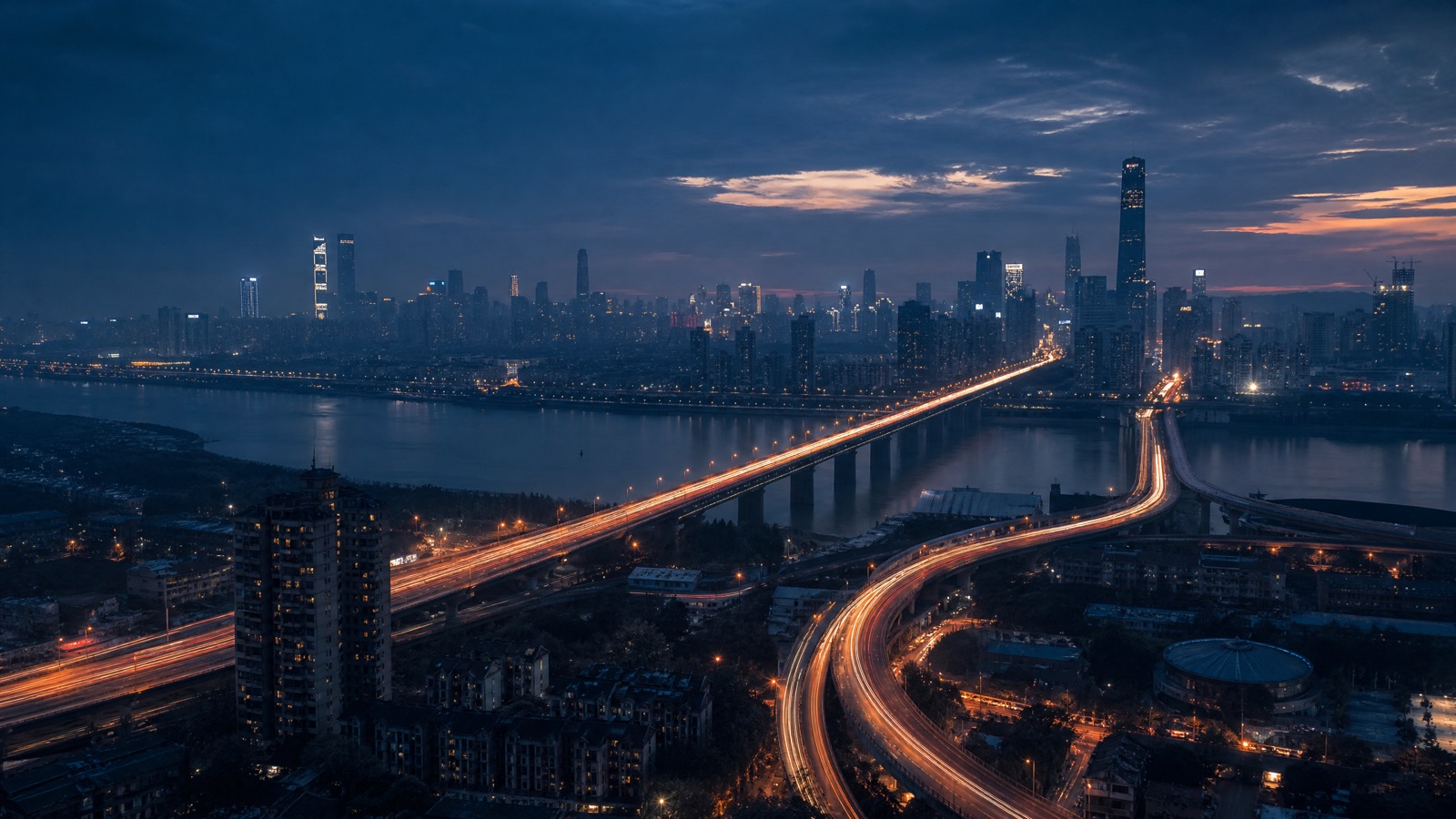
Dusk skylines, light trails, coastlines, and rooftops. Keep the horizon level and the camera move slow.
Video generation · Workflow guide
B-roll is a supporting shot, not a second story. The best prompts are short, specific, and built around one camera move. If the clip needs a plot, it is not b-roll.
Describe a single shot with one subject, one action, one camera move, and one lighting idea. Avoid plot. Generate several five-second clips and cut them into the edit. Match light direction and movement to the surrounding footage.
A shot list and one clear visual idea per clip
Five-second cutaways that match the edit
Veo 3.1, Sora 2, Kling 3.0, Hailuo, Gemini Omni Flash
Cut the clips to the music or voice track
Pick a preset, adjust the subject and scene, then copy the prompt. The optional photo preview stays in your browser: this page does not upload it. The generator is a separate site with its own terms and pricing.
Copying the prompt does not create an account or charge credits. The hosted generator opens a separate site with its own terms and pricing.
Dusk skylines, light trails, coastlines, and rooftops. Keep the horizon level and the camera move slow.
Coffee pours, steam, ice, and close-up texture. One physical action per clip.
A hand picking up a product, a label turning into light, or a surface detail. Use these between talking-head shots.
Rain on a window, fog in trees, curtains moving, or dust in a beam of light. These clips set pace without adding information.
List the cutaways the edit needs: establishing, texture, transition, and reaction. Generate only the shots on the list.
A pour, a step, a turn, or a light change. If the prompt contains “and then”, split it into two clips.
Slow dolly, gentle orbit, locked-off, or aerial. A single move makes the clip easy to cut against dialogue.
Name the time of day and direction of light so the b-roll cuts with the main footage instead of fighting it.
Use this structure as a checklist. Replace the bracketed fields, keep the protection lines, and remove anything that does not apply to your shot.
Create a [duration]-second cinematic b-roll shot of [subject].
Action: [one physical action].
Camera: [one move], [shot size], [lens].
Light: [time of day, direction, quality].
Texture: [rain, dust, steam, fabric, film grain].
No people looking at the camera, no text, no logos, no watermarks.These notes describe where each model tends to fit. They are not a ranking. Model availability changes by provider: WaveSpeed, SeeAPI, FAL, Replicate, and Kie all serve image and video models in this class. The hosted generator shows the available models and credit cost before you run a job.
| Model | Best fit |
|---|---|
| Veo 3.1 | Detailed environments and coherent lighting for establishing shots. |
| Sora 2 | Physically believable water, smoke, and object motion. |
| Kling 3.0 | Polished camera moves and cinematic texture. |
| Hailuo | Stylized motion for social-first edits. |
| Gemini Omni Flash | Quick variations and conversational refinements. |
A slow aerial move gives the editor a clean handle at the start and end of the clip.
Create a 5-second cinematic b-roll shot of a city skyline at blue hour with a river and car light trails. Slow forward aerial move over the river toward the skyline. Wide 24mm equivalent, smooth dolly. Low haze, glowing windows, distant traffic. Keep the horizon level and the buildings stable. No text, no logos, no watermarks.One action, one light source. The steam gives the editor a natural transition point.
Create a 5-second cinematic b-roll shot of coffee pouring into a ceramic cup on a wooden counter. Macro 100mm, 45-degree angle, locked-off with a tiny push-in. Warm morning window light from the left. Steam rises and the liquid settles. Keep the cup, carafe, and counter unchanged. No people looking at the camera, no text, no logos, no watermarks.A locked-off texture shot is the easiest clip to cut. It adds mood without competing with dialogue.
Create a 5-second cinematic b-roll shot of rain running down a window at night, with blurred amber and blue city lights beyond. Locked-off close-up, 50mm lens, shallow depth of field. Rain streaks down the glass while the lights pulse softly. Keep the window frame and composition stable. No text, no logos, no watermarks.B-roll is a shot, not a story. If the prompt has a beginning, middle, and end, it belongs in a different workflow.
A pour, a turn, and a smile in five seconds gives the editor nothing clean to cut.
B-roll that does not match the main footage looks inserted. Name the direction and quality of light.
Generating without a list produces random clips. Start from the edit and work backward.
Five seconds is a practical default. Generate a little longer than the edit needs so you have handles for transitions.
Check the model's commercial terms and your platform's disclosure rules. This guide does not grant rights or provide legal advice.
Not always. B-roll is a good fit for text-to-video. Use a reference when the shot must match a real location or product.
Use the model that handles your texture best: water and smoke, city aerials, or stylized motion. Compare one prompt across two models.
Generate three to five variations per shot list item. Pick the cleanest camera move and cut the rest away.
Yes. Add music in your editor and cut the clips to the beat. Some models can generate audio, but a separate track gives you more control.
Open the hosted generator, paste the prompt, and run one short test. Keep the first generation small; a clean five-second clip is easier to judge than a long one.
Flash Omni is an independent guide and is not affiliated with Google. The hosted generator is a separate product with its own terms and pricing.