Start from a still
Use an image workflow when you need a clean frame, a costume preview, a product packshot, or a location plate. Move to image-to-video when the frame is ready.
Workflow hub · 15 guides
Pick the job you need to finish, not the model name. Each guide below turns one common creative task into a repeatable prompt: what to upload, what to protect, what to change, and how to review the result before you publish.
Start with the output you need: a still, a video, or an edit. Use an image workflow to build a clean frame, an image-to-video workflow to add motion, and a video editor workflow to change one layer of an existing clip. Every guide includes a local prompt studio and a link to the hosted generator.
All 15 guides are English-language and self-canonical. The prompt studio on each page runs in your browser; generation happens on the hosted Flash Omni generator.
Start with the job, not the model. The picker points to the guide that matches the deliverable you need.
Build a clean still, then change one layer at a time without losing the face or the product.
Write image prompts that make clean, editable frames for image-to-video work. Copy tested formulas for portraits, products, and locations, then animate the result.
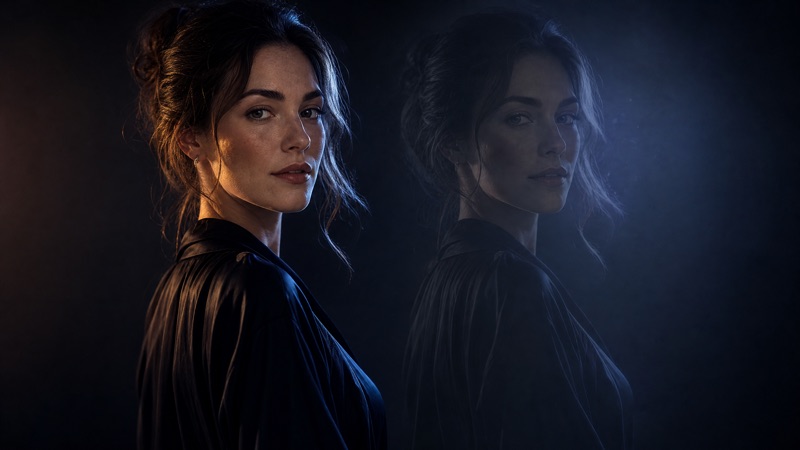
Edit a photo with text prompts: replace backgrounds, restyle outfits, relight portraits, and keep the face recognizable. Copy ready-to-use edit prompts.
Turn a prompt or a single image into a short, controlled clip.
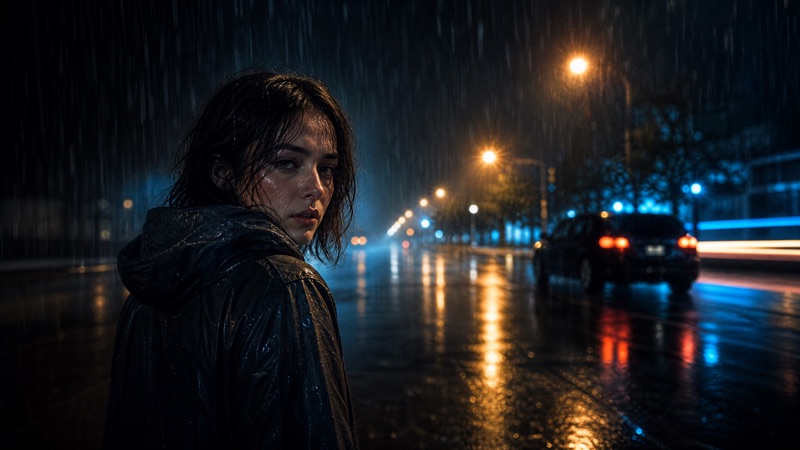
Turn one photo into a short AI video with image-to-video prompts, camera moves, and identity-safe settings. Build the prompt, then open Flash Omni.
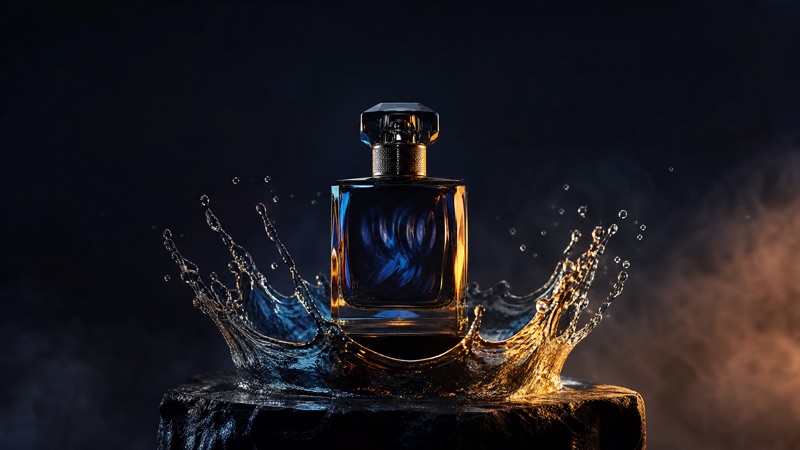
Create short product videos from a photo or prompt: rotating hero shots, lifestyle scenes, and ad variants that keep packaging and labels consistent.
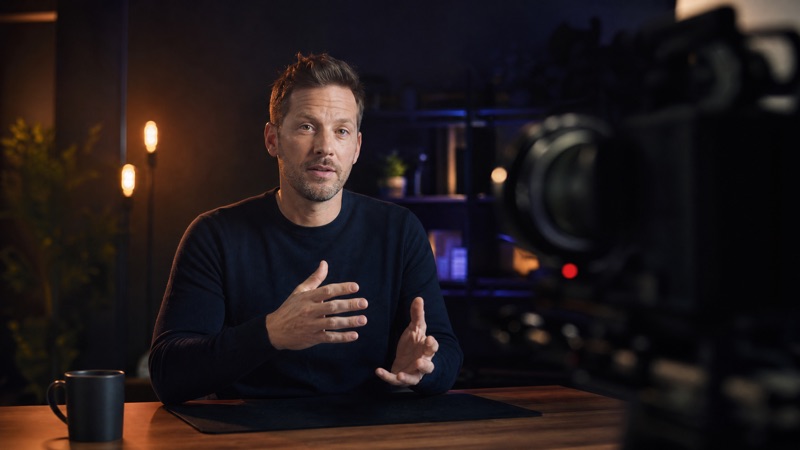
Turn a portrait into a short avatar clip with natural head movement, eye contact, and consistent identity. Write the prompt, then generate on Flash Omni.
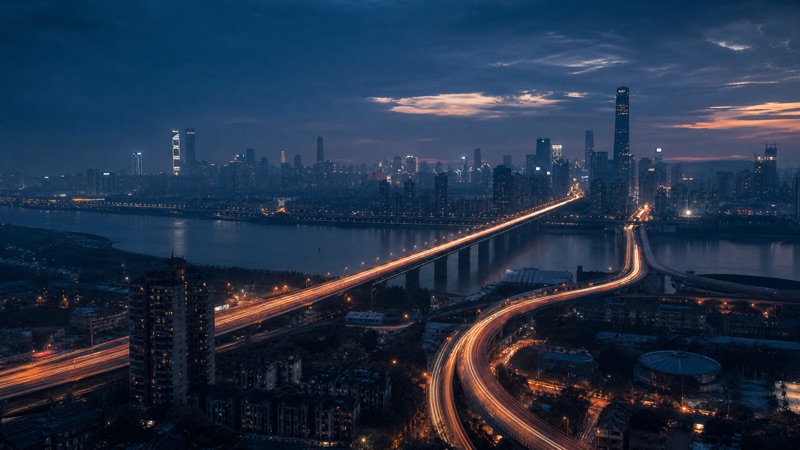
Generate cinematic b-roll from a text prompt: city aerials, coffee pours, product inserts, and atmospheric cutaways for edits, ads, and social video.
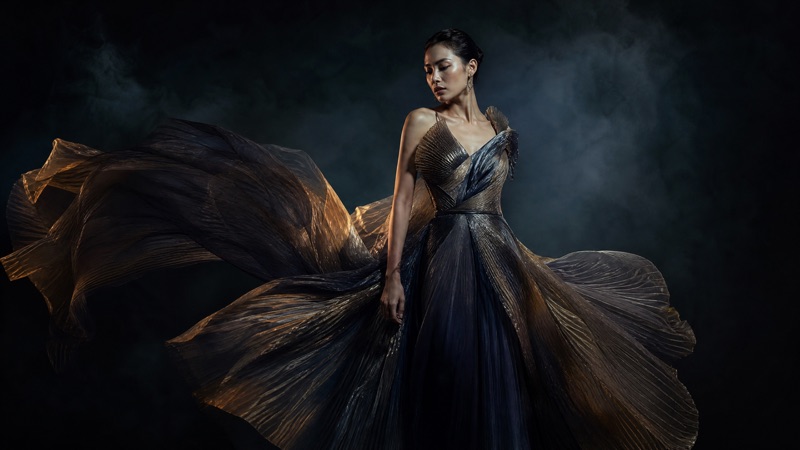
Turn a fashion still or lookbook shot into a short try-on video while keeping the model, garment, and pose consistent. Build the prompt, then generate.
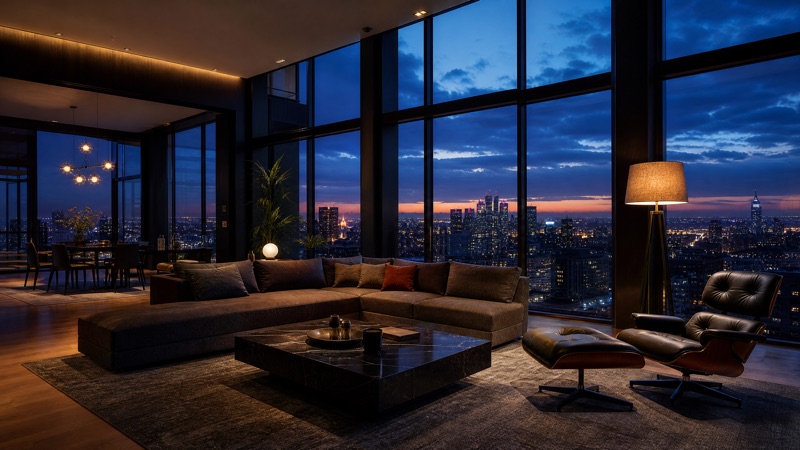
Turn listing photos into short property videos with smooth camera moves, warm lighting, and stable architecture. Build a room-by-room prompt in minutes.
Keep the performance and change one layer: background, light, object, or style.
Costume previews, portraits, pet photos, couple portraits, and short clips for October 31.
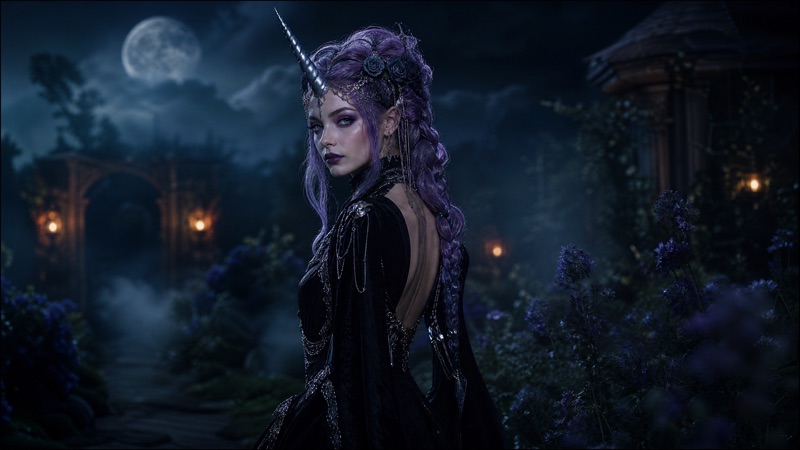
See yourself in original Halloween costumes before you buy: haunted unicorn, midnight braids, cosmic princess, robot, and more. Copy the prompt and generate.
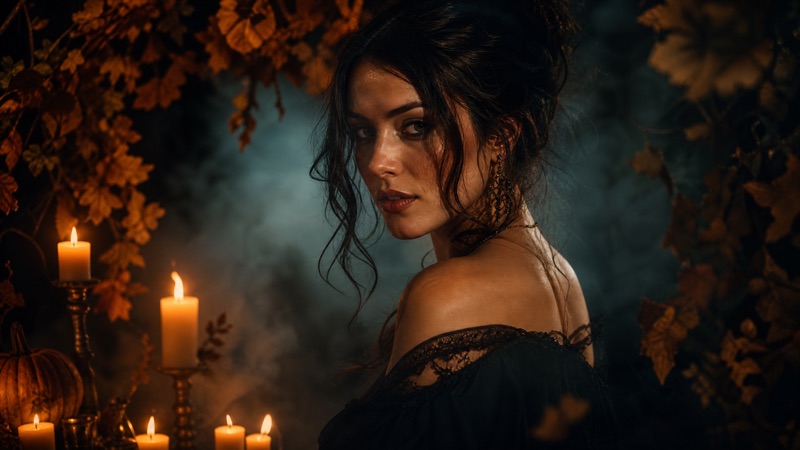
Turn a selfie into a Halloween portrait with fog, candlelight, costume styling, and cinematic color. Copy a tested edit prompt and keep your face recognizable.
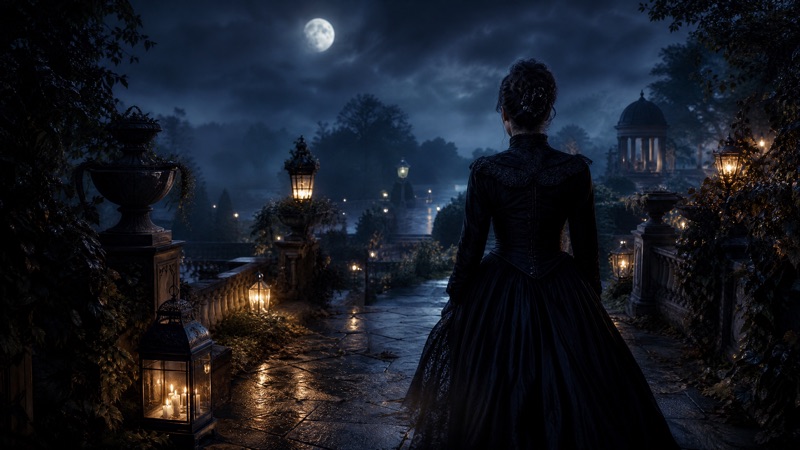
Animate a Halloween costume photo into a short cinematic clip: drifting fog, flickering candles, slow push-ins, and subtle head turns. Build the prompt and generate.

Preview Halloween pet costume ideas on your own pet photo: pumpkin, glow dinosaur, butter stick, and more, while keeping fur, breed, and markings intact.
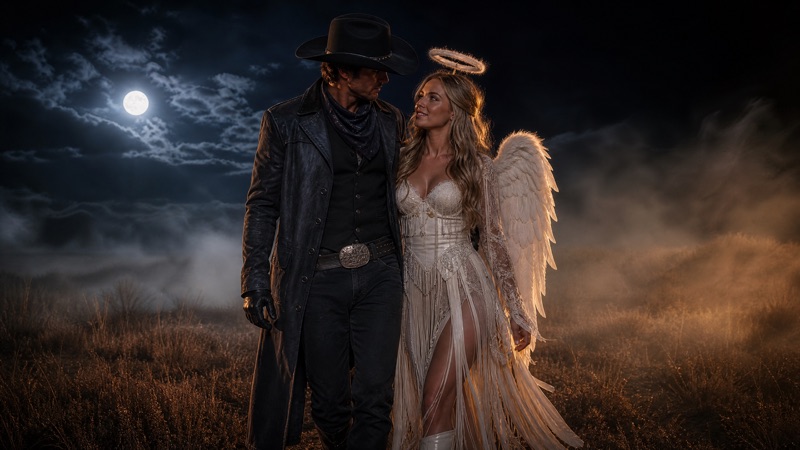
Preview coordinated Halloween couple costume ideas on your own photos. Keep both faces recognizable, compare looks, and generate a shared scene.
Compare credit cost, refunds, renewal terms, and commercial rights before a seasonal sale.
Use an image workflow when you need a clean frame, a costume preview, a product packshot, or a location plate. Move to image-to-video when the frame is ready.
Use image-to-video when the composition already works. Use video editing when the performance is right but one layer, such as background or light, needs to change.
Use a text-to-video workflow for b-roll, product hooks, or avatar clips. One action, one camera move, and one light idea per generation.
Every guide uses the same protection-first structure: preserve identity and product facts, change one layer, review the result, then iterate.
It is a focused guide for one creative job: what to upload, what to protect, what to change, and how to review the result. Each page includes a prompt studio that runs in your browser.
No. The prompt studio runs locally on this site. Generation happens on the hosted Flash Omni generator, which has its own account and pricing terms.
Use the workflow picker on this page. Choose the output you need, and it will point to the closest guide.
Seasonal searches peak before the event. The guides are built to be useful before and after the date, with instructions you can reuse for other campaigns.
They are concept images generated with GPT Image 2 for this guide. They show the intended look, not a guaranteed model output.
The optional preview stays in your browser and is not uploaded by this page. The site loads analytics as described in the privacy policy.
Pick the closest workflow, copy the prompt, and run a short test on the hosted generator. Review identity, labels, and anatomy before scaling up.
Independent guide. Not affiliated with Google. The hosted generator is a separate product with its own terms and pricing.