Room tour
A slow dolly or pan through a living room, kitchen, or bedroom. Keep the architecture and furniture layout exact.
Video generation · Workflow guide
Property video needs restraint. The room is the subject; the camera should reveal it, not redecorate it. A convincing listing clip protects walls, windows, flooring, and furniture layout while adding motion and light.
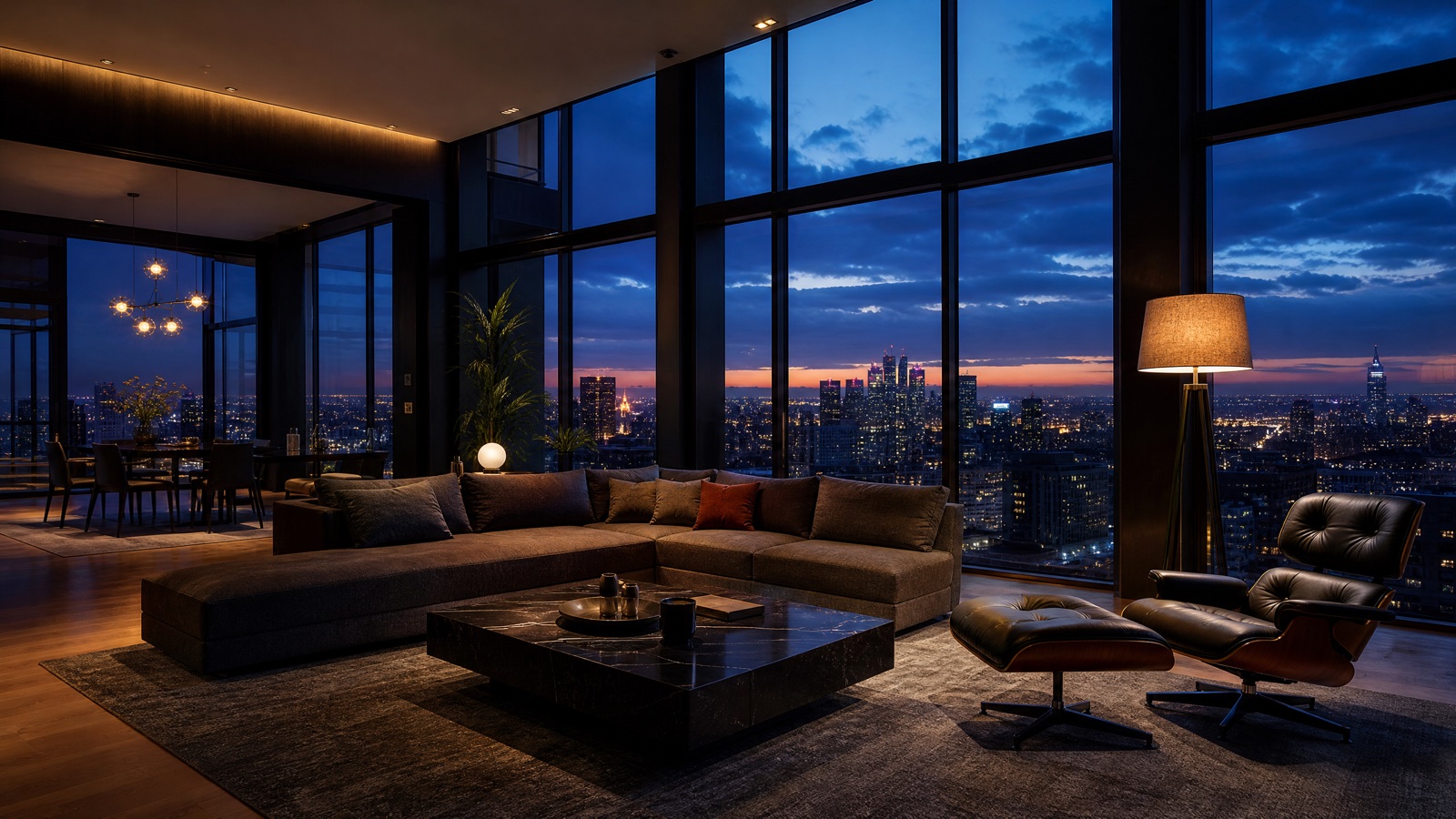
Use a wide, well-lit listing photo. Preserve walls, windows, flooring, and furniture layout. Ask for a slow dolly or pan, warm practical lights, and a stable horizon. Keep claims factual and label the clip as a visual preview.
A wide, level listing photo with clean light
A short room clip with a stable camera move
Veo 3.1, Kling 3.0, Sora 2, Gemini Omni Flash
Add a room label, music, and listing details
Pick a preset, adjust the subject and scene, then copy the prompt. The optional photo preview stays in your browser: this page does not upload it. The generator is a separate site with its own terms and pricing.
Copying the prompt does not create an account or charge credits. The hosted generator opens a separate site with its own terms and pricing.
A slow dolly or pan through a living room, kitchen, or bedroom. Keep the architecture and furniture layout exact.
A short exterior-to-interior sequence for social. Use one clip per space and cut them together.
Warm interior lights and a deep blue sky. Do not invent windows, additions, or landscaping.
A generic street or skyline clip to set the location. Keep it clearly illustrative and avoid implying a specific view.
Start with the room that sells the property. Use a wide, level photo with clean light and no clutter.
Name walls, windows, flooring, ceiling lines, and furniture placement. These are the facts of the listing.
A slow dolly forward, a lateral slide, or a gentle pan. Do not combine a push-in with a turn.
Keep the light consistent with the photos. A twilight clip next to daylight photos looks misleading.
Use this structure as a checklist. Replace the bracketed fields, keep the protection lines, and remove anything that does not apply to your shot.
Use the uploaded listing photo as the exact room reference.
Preserve: walls, windows, flooring, ceiling, furniture layout, and view.
Camera: [slow dolly, pan, or push-in].
Light: [time of day, practical lamps, window light].
Atmosphere: [soft dust, gentle curtain movement].
Do not add or remove furniture, change the layout, or invent architectural features.
No text, no logos, no watermarks.These notes describe where each model tends to fit. They are not a ranking. Model availability changes by provider: WaveSpeed, SeeAPI, FAL, Replicate, and Kie all serve image and video models in this class. The hosted generator shows the available models and credit cost before you run a job.
| Model | Best fit |
|---|---|
| Veo 3.1 | Architectural detail and coherent interior lighting. |
| Kling 3.0 | Smooth camera moves and polished real-estate visuals. |
| Sora 2 | Believable light, curtains, and atmospheric motion. |
| Gemini Omni Flash | Iterative changes to light or camera without rebuilding the room. |
The room stays factual; only the camera and the curtains move. This is the safest listing clip.
Use the uploaded listing photo as the exact room reference. Preserve the walls, windows, flooring, ceiling, furniture layout, and view. Slow dolly forward into the living room while the curtains move gently. Wide 24mm, eye level, stable horizon. Twilight exterior, warm interior lamps. Do not add or remove furniture or invent architectural features. No text, no logos, no watermarks.Warm windows and a deep blue sky add mood without changing the house.
Use the uploaded exterior photo as the exact house reference. Preserve the roofline, windows, doors, driveway, and landscaping. Slow push-in as the interior lights glow. Deep blue twilight, wet driveway, soft landscape lighting. Wide 28mm, eye level. Do not add rooms, windows, or structures. No text, no logos, no watermarks.A lateral pan shows the workflow of the room without a complex walkthrough.
Use the uploaded kitchen photo as the exact room reference. Preserve the cabinets, appliances, counters, and window placement. Slow lateral pan across the counter and cabinets. Bright morning light, clean counters, soft shadows. Wide 24mm, counter height. Do not add or remove objects. No text, no logos, no watermarks.Moving a wall or a window misrepresents the property. Protect the architecture explicitly.
Wide lenses can bend vertical lines. Keep the camera level and the horizon stable.
A dramatic sky that does not match the listing photos can mislead buyers. Keep the time of day consistent.
Do not generate amenities, views, or renovations that do not exist. Label the clip as a visual preview.
It can add furniture, but that changes what the listing shows. If you use it, label the clip as a virtual staging preview and keep the architecture unchanged.
It can if you do not protect walls, windows, and furniture placement. Name those details in the first lines of the prompt.
Check your local disclosure rules and the platform's synthetic-media policy. Label generated or virtually staged clips clearly.
A wide, level, well-lit photo with minimal clutter. Avoid extreme wide-angle shots and photos with blown-out windows.
Choose the model that preserves straight lines and interior lighting. Test a slow dolly on one room before generating the full set.
Yes. Add narration and music in your editor after generating the clips.
Open the hosted generator, paste the prompt, and run one short test. Keep the first generation small; a clean five-second clip is easier to judge than a long one.
Flash Omni is an independent guide and is not affiliated with Google. The hosted generator is a separate product with its own terms and pricing.